On this page
Still need help?
Our support team is ready to help.
WorkForce365 Documentation
Salary Config Documentation
Create salary headers and templates, configure component shares and performance ranges, then assign salary structures to employees.
Purpose and Key Features
Salary Config gives administrators a reusable way to describe employee salary structures. Headers name the components, templates define each component's share, and employee salary settings apply a valid template with the current performance values.
Salary Headers
Create reusable Base or Performance components with a code, display order, required flag, and active state.
Salary Templates
Combine selected headers into an exact 100% contractual salary breakdown for a department or role.
Performance Ranges
Set the minimum and maximum allowed rate for each Performance Header while preserving its salary share.
Employee Assignment
Select a template, review calculated full and payable amounts, and save each employee's current performance values.
Configuration Workflow
Configure reusable components first, validate the template, and then assign it to employees.
- Create each Salary Header with a unique name and code.
- Choose Base Header for a fully paid component or Performance Header for a variable component.
- Create a Salary Template and select the headers needed by that department or role.
- Enter a salary share for every selected header so the complete template totals exactly 100%.
- For every Performance Header, enter its minimum and maximum allowed performance percentages.
- Review the template detail page, sample calculation, validity badge, and assigned employee count.
- Open an employee's Salary & Settings page, enter the contractual salary, and select the active template.
- Review full and payable component amounts, set current performance values, and save the assignment.
Salary Components and Scope
Salary Config owns contractual components; Payroll owns month-specific additions, recoveries, and attendance effects.
Basic Salary
The employee's Base Salary field stores the contractual monthly amount used to calculate every template share.
Base Allowances
House, transport, medical, or similar fixed allowances can be created as Base Headers and are paid at their full allocated share.
Performance Allowances
A Performance Header receives a fixed salary share, then its payable amount changes within the configured minimum and maximum range.
Bonuses
Recurring contractual performance components belong in Salary Config; one-time monthly bonuses are added from Payroll.
Deductions
Salary Config has no deduction header type. Advance and loan recoveries, unpaid attendance effects, and other monthly deductions are calculated in Payroll.
Overtime and Attendance
Overtime multipliers and work settings are saved with the employee, while attendance and leave determine the month's payable result.
Salary Header Controls
The Salary Headers page lists reusable components and protects headers already used by templates.
Status Filter
Choose All, Active Only, or Inactive Only. The list refreshes as soon as the option changes.
Search Option
Salary Headers does not currently use a free-text search box; use the compact status filter and visible name or code cards.
Add Header
Enter the name, unique code, description, category, display order, Active state, and Required state.
Badges and Statistics
Each card shows Base or Performance type and Active or Inactive status; totals summarize all, active, and performance headers.
Edit Action
Update an unused header's fields. Its category cannot change after a salary template uses it.
Delete Action
Delete is available only when no salary template uses the header; otherwise the disabled delete icon explains the restriction.
Template Search, Filters, and Actions
Salary Templates can be narrowed by status, department, or a targeted text search.
Status
Show All Status, Active Only, or Inactive Only templates.
Department
Limit results to templates configured for a selected department.
Search Templates
Search by template name, department, or role.
Apply and Clear
Apply Filters runs the current search; Clear Filters restores the complete template list.
List Information
Rows show components and shares, Active or Inactive state, Valid or Invalid percentage, and assigned employees.
Action Buttons
Create Template adds a structure; View opens details; Edit changes it; Delete is allowed only when no employee is assigned.
Template Rules and Calculations
The template separates each component's contractual share from a Performance Header's current payable rate.
Salary Share
Every selected header requires a share greater than 0% and no greater than 100%.
Complete Breakdown
All selected salary shares must total exactly 100% before Create Template or Update Template becomes available.
Minimum Performance
The minimum must be zero or higher and becomes the default current performance value when no employee-specific value exists.
Maximum Performance
The maximum must not be lower than the minimum and may exceed 100% for above-target performance.
Calculated Amount
Full Amount equals contractual salary multiplied by salary share; a Performance Header's Payable Amount also applies the current performance percentage.
Clone Template
A valid 100% template can be cloned from its detail page and adjusted under a new unique name.
Employee Assignment
The employee Salary & Settings page previews the selected template before the assignment is saved.
Contractual Salary
Enter the employee's full monthly salary before the template divides it into components.
Select Template
Only active salary templates are available for assignment.
Header Preview
The table shows header, type, salary share, full amount, performance range or current value, and final payable amount.
Performance Value
Each Performance Header value is kept between its template minimum and maximum.
Work and Overtime Settings
The same page stores work type, schedule, lunch, buffers, grace period, overtime multiplier, and attendance switches.
Effective Records
Current and future calculations use the saved settings; historical monthly salary snapshots preserve the values used for that period.
Salary Config Screens
These screenshots use synthetic documentation records and are generated from the current Salary Config templates. Select a screenshot to open the full-size image.
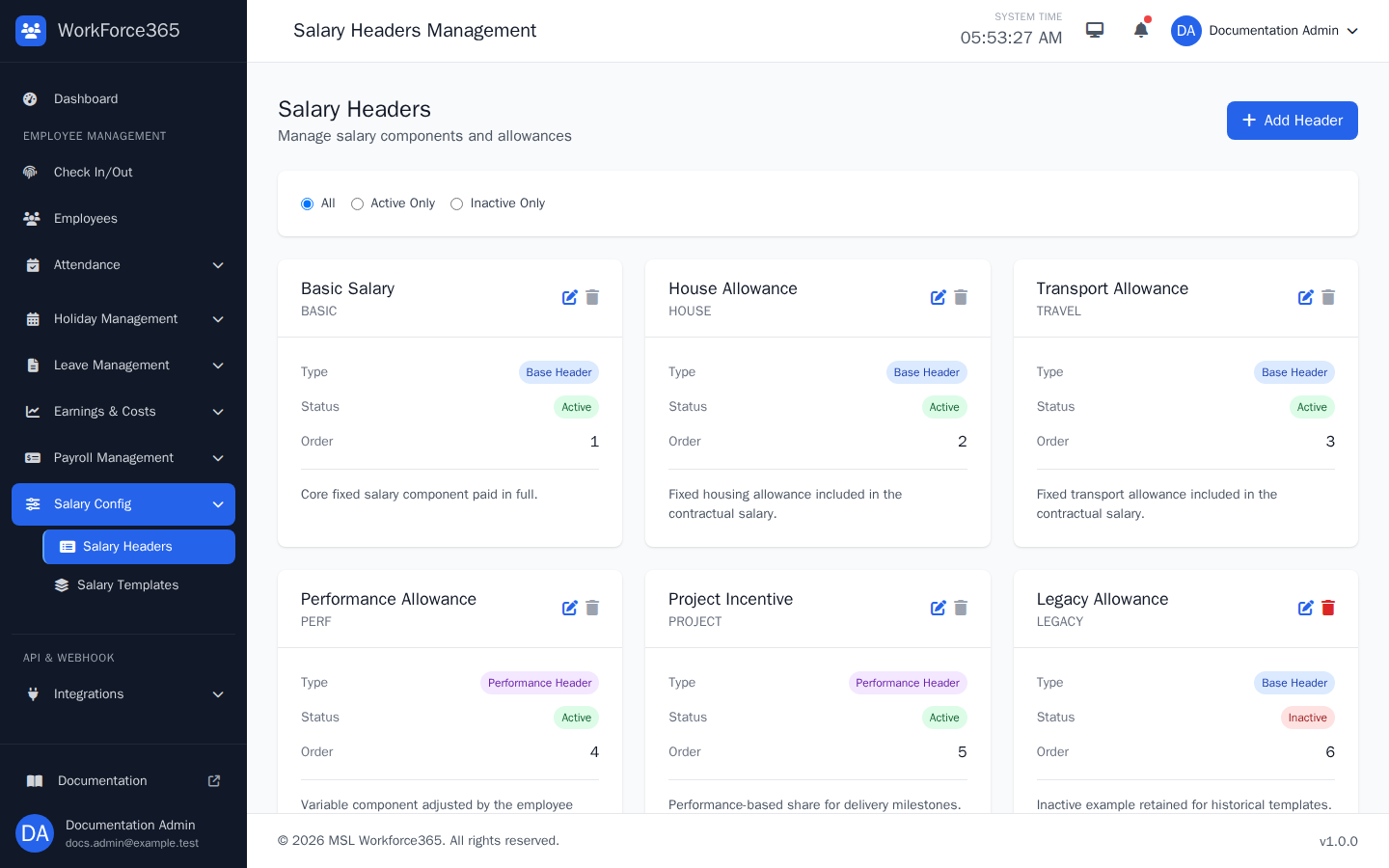
Salary Headers
Review component names, codes, Base or Performance badges, Active or Inactive state, display order, descriptions, and summary totals. Filter by status, add a header, or use the edit and permitted delete actions.
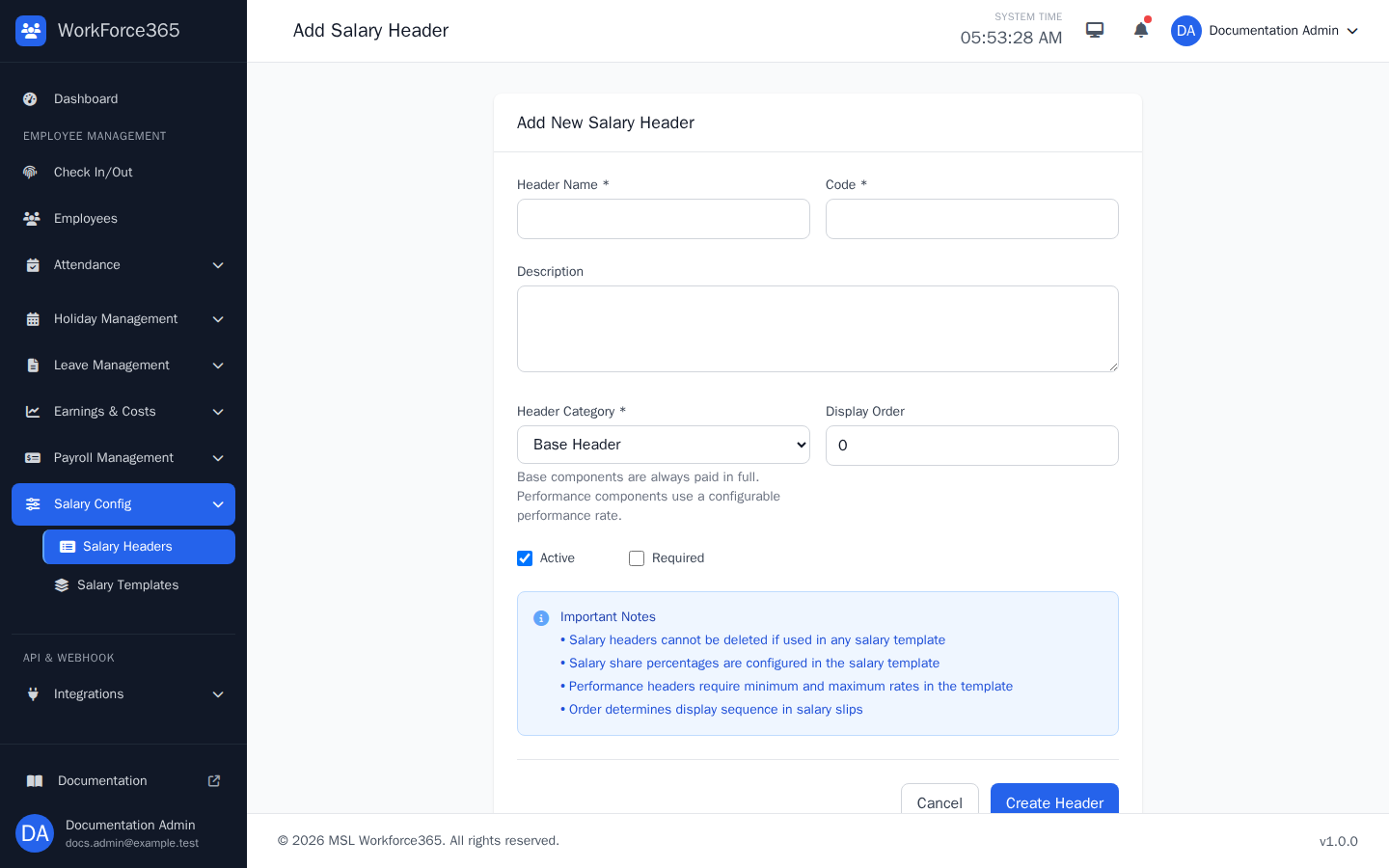
Add Salary Header
Enter a unique header name and code, optional description, Base or Performance category, and display order. Active makes it available to templates; Required marks it as a required business component. Edit uses the same form.
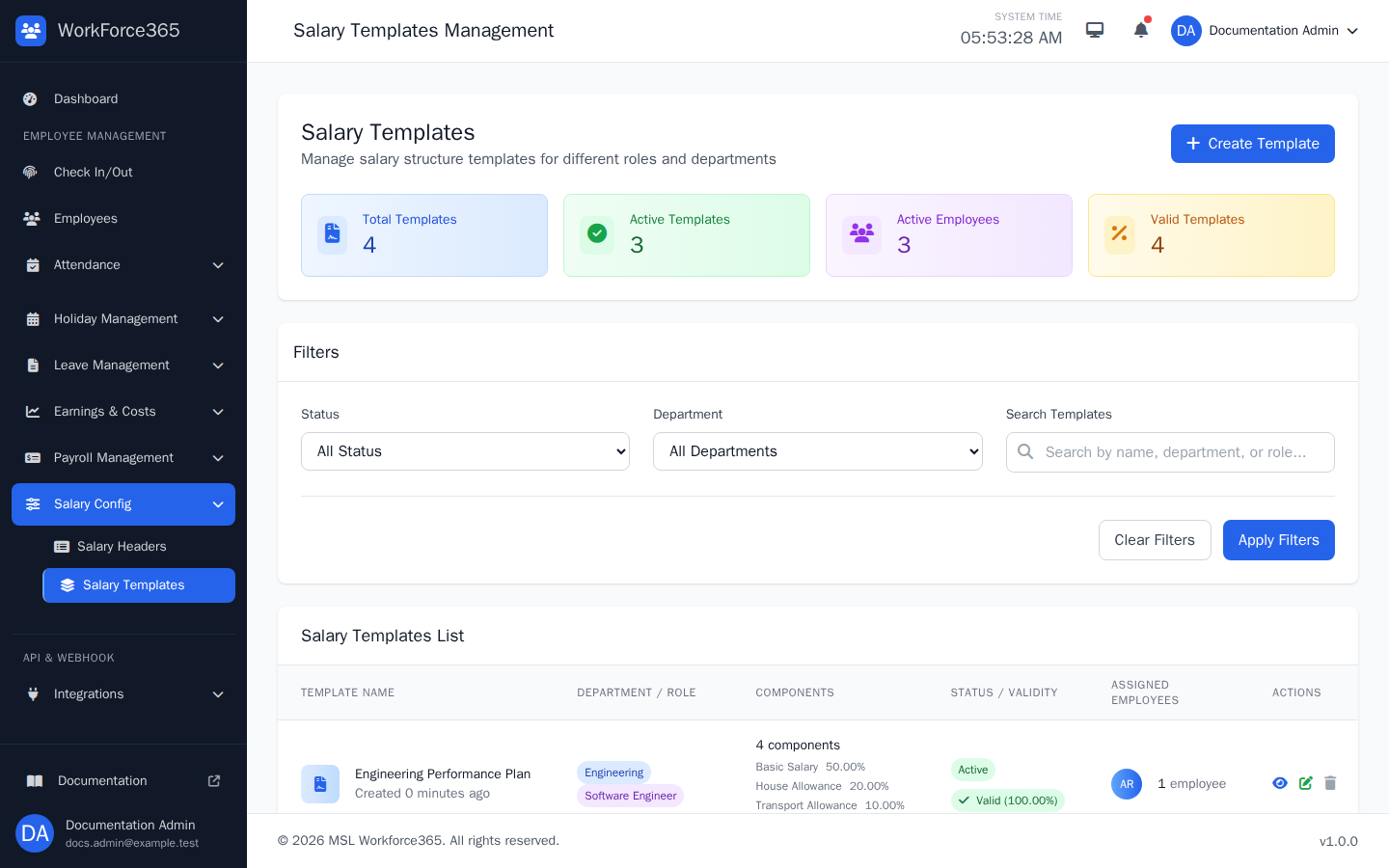
Salary Templates
Search by name, department, or role and filter by status or department. Each row summarizes components, validity, assigned employees, and the View, Edit, or allowed Delete actions.
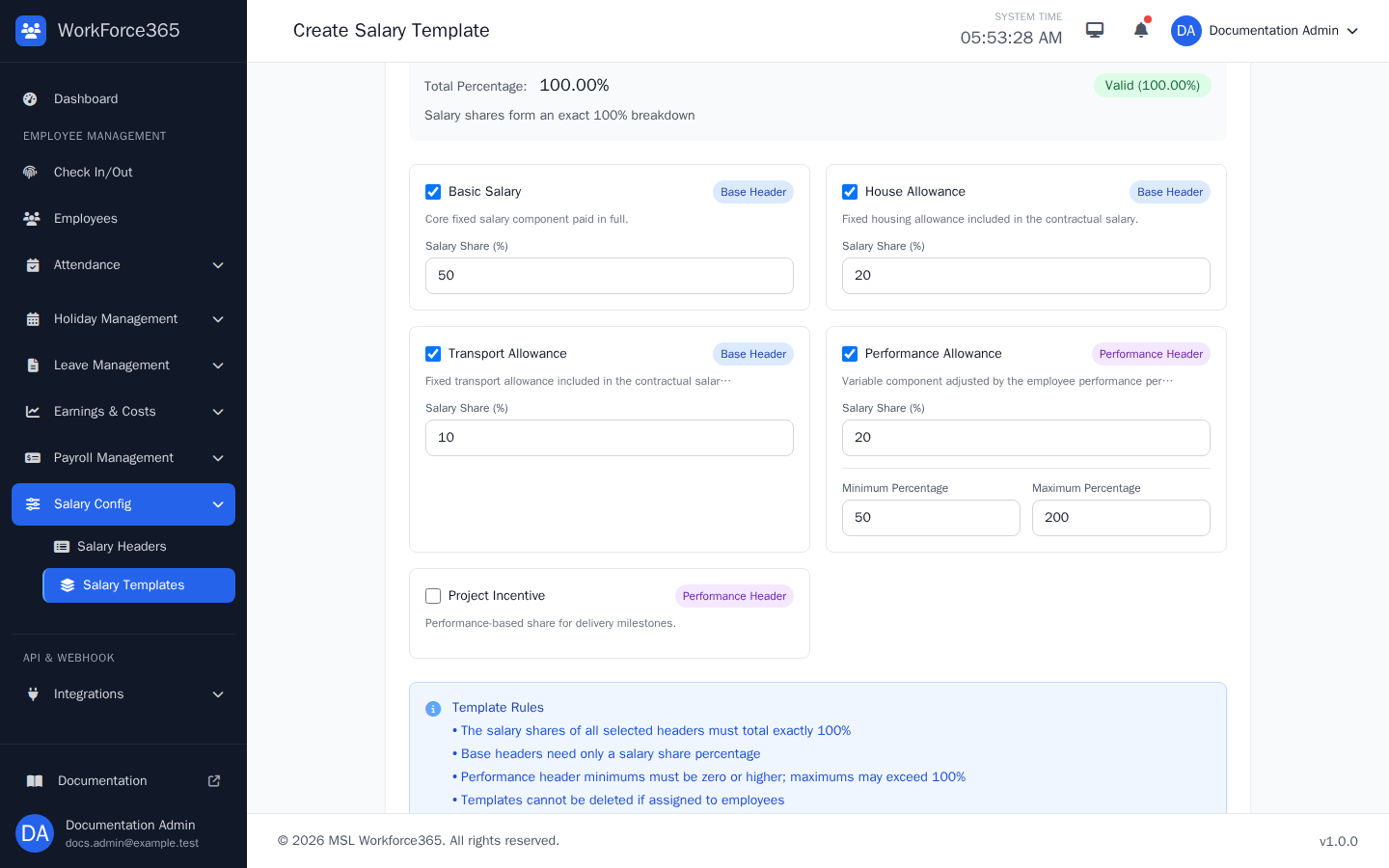
Create Salary Template
Enter the template identity, select component headers, and assign each salary share. Performance components reveal minimum and maximum fields, and the live total must be a valid 100% before submission.
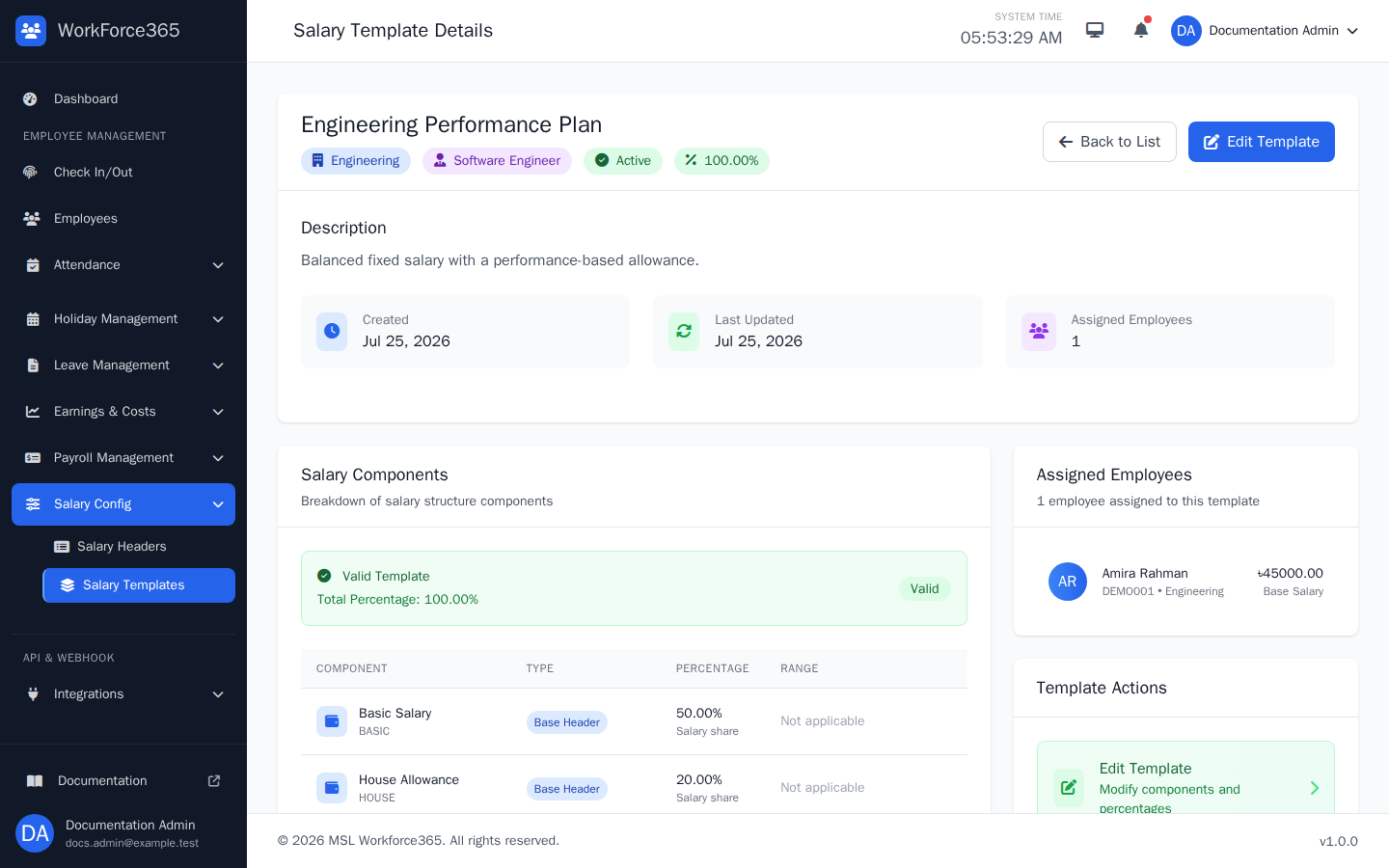
Salary Template Details
Confirm department, role, status, 100% validity, component types, salary shares, performance ranges, sample amounts, and assigned employees. Edit, Clone, or conditionally Delete the template from this page.
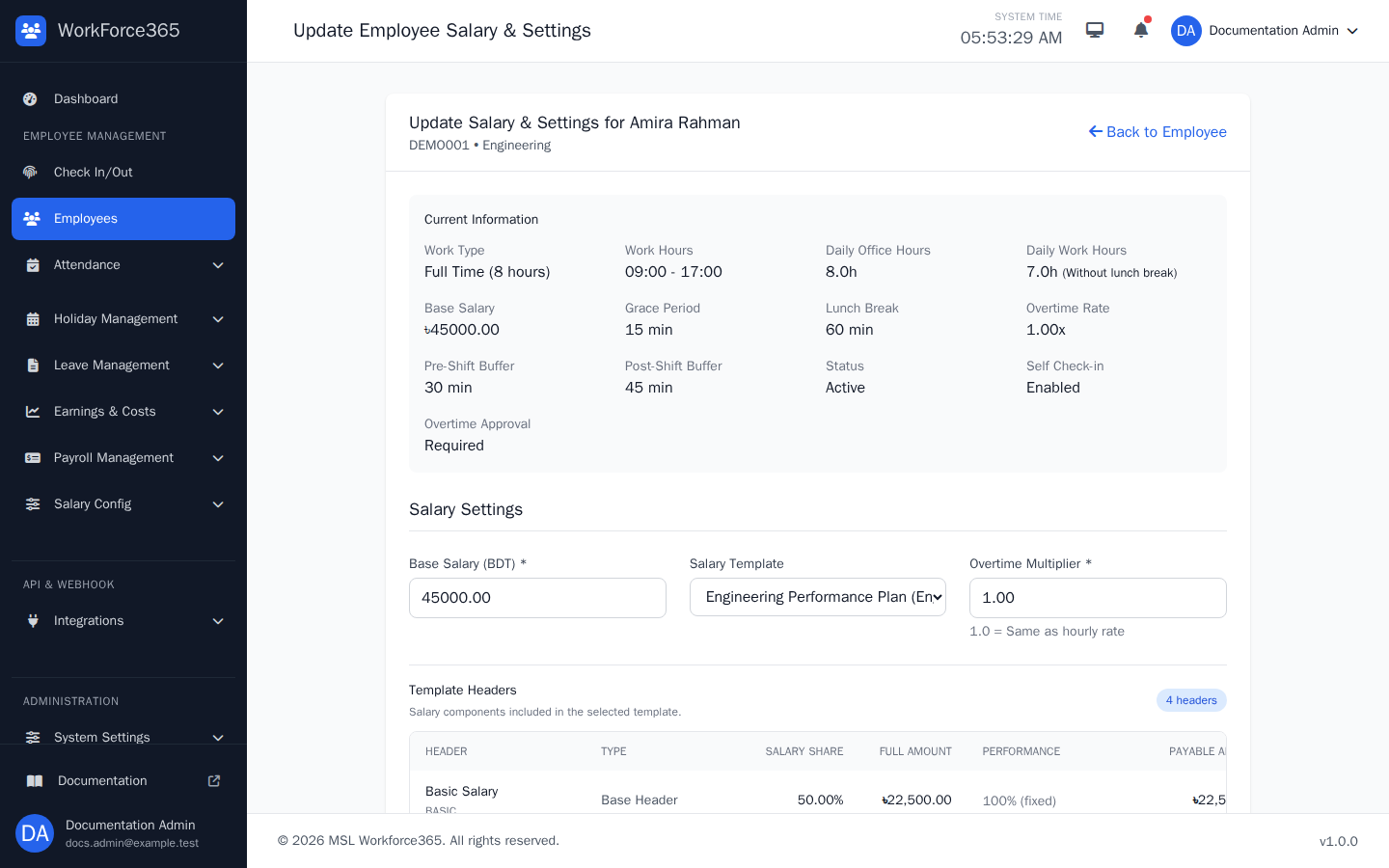
Employee Salary & Settings
Set contractual salary and choose an active template. The header table previews each full amount, current performance value, and payable amount before saving, alongside the employee's overtime and work settings.
History and Screenshot Refresh
Salary Config changes are period-aware, and documentation images can be rebuilt from current templates.
Current Month
Template changes refresh current salary calculations for assigned employees when the period remains editable.
Historical Months
Monthly salary snapshots preserve the template, component shares, performance values, and calculation used for that period.
Assigned Records
Headers used in templates and templates assigned to employees are protected from unsafe deletion.
Refresh Screenshots
Run the documentation screenshot command after Salary Config templates or controls change.