On this page
Still need help?
Our support team is ready to help.
WorkForce365 Documentation
System Settings Documentation
Configure application-wide defaults, communications, attendance integrations, automation, scheduled operations, and test time.
Purpose, Access, and System Impact
System Settings provides one administrator-controlled place for application-wide defaults, communication services, attendance integrations, automation, background-task monitoring, and controlled time testing.
Administrator Access
Every System Settings page requires a signed-in administrator. These controls are intentionally hidden from employees and operational managers.
Application-Wide Scope
Timezone, currency, email, bot, device, automation, and fake-time changes can affect every user or future system process.
Runtime and Monitoring
Device, Telegram, and Celery pages show connection or execution health alongside their configuration controls.
Persistent Configuration
Saved settings remain active until an administrator updates, disables, resets, or replaces them.
Recommended Configuration Workflow
Use a consistent review process for settings that can change behavior across the application.
- Open the relevant page under Administration → System Settings.
- Review the current value, runtime state, recent logs, and any warning shown on the page.
- Confirm the intended system-wide impact and enter only validated configuration values.
- Save once, verify the success message, then confirm the displayed status or monitor data.
- Record sensitive changes through the organization's approved operational process.
Available Configuration Options
Each page owns a specific group of settings and has a different operational effect.
| Page | Configuration | Application Effect |
|---|---|---|
| System Defaults | Timezone and currency | Controls application time interpretation and displayed monetary symbol or code. Currency selection does not convert stored values. |
| Mailgun Config | Domain, region, verification status, and required DNS records | Creates Mailgun domains through the backend API and tracks whether their sending and receiving DNS records are ready. |
| Attendance Devices | Runtime, vendor, model, ADMS endpoints, and setup state | Controls attendance-machine connectivity and incoming device data. |
| Attendance Automation | Employee, check-in/out, break, source, and status | Creates scheduled employee attendance punches according to active rules. |
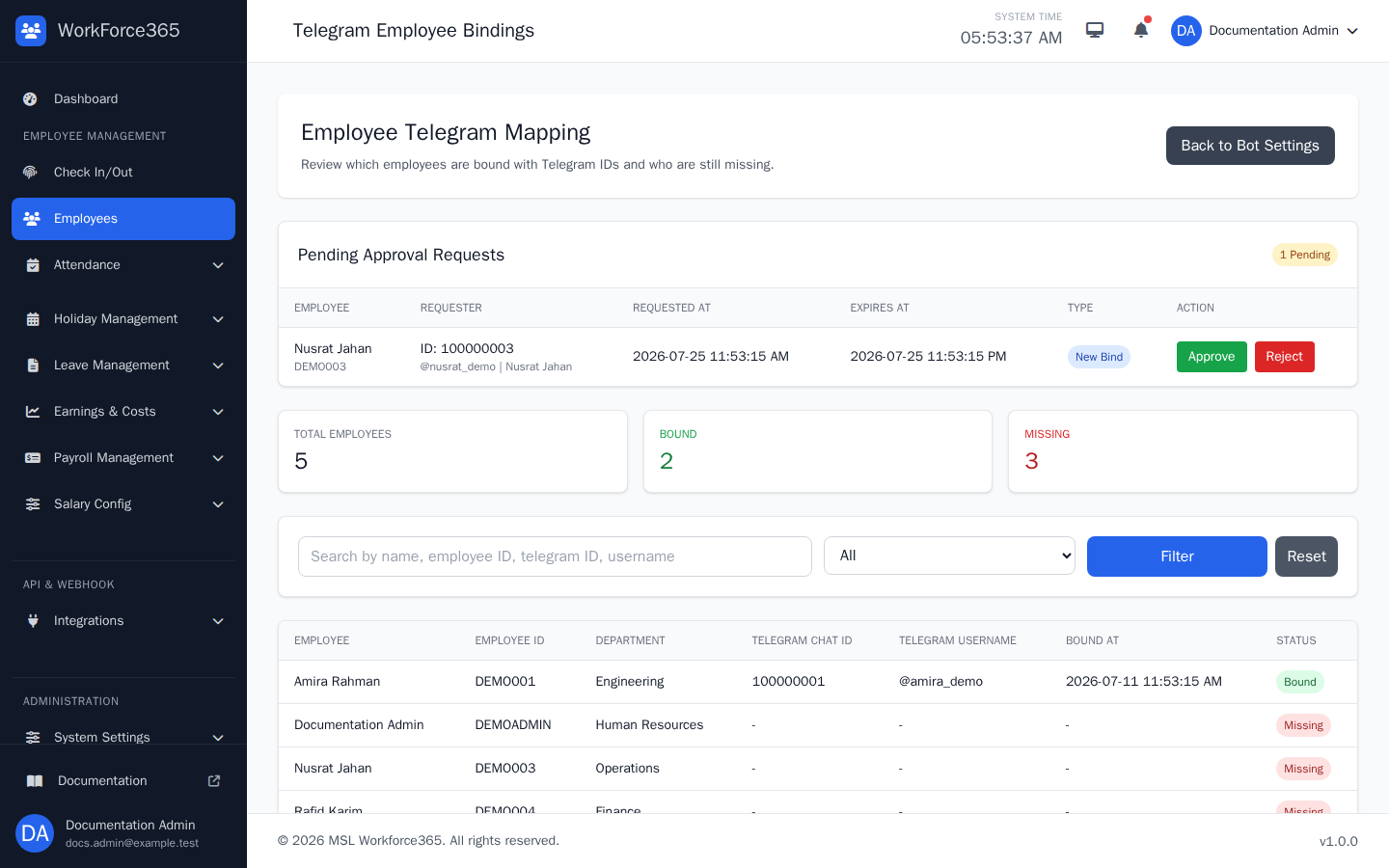
| Telegram Bindings | Employee mappings and approval requests | Determines which Telegram account belongs to each employee. |
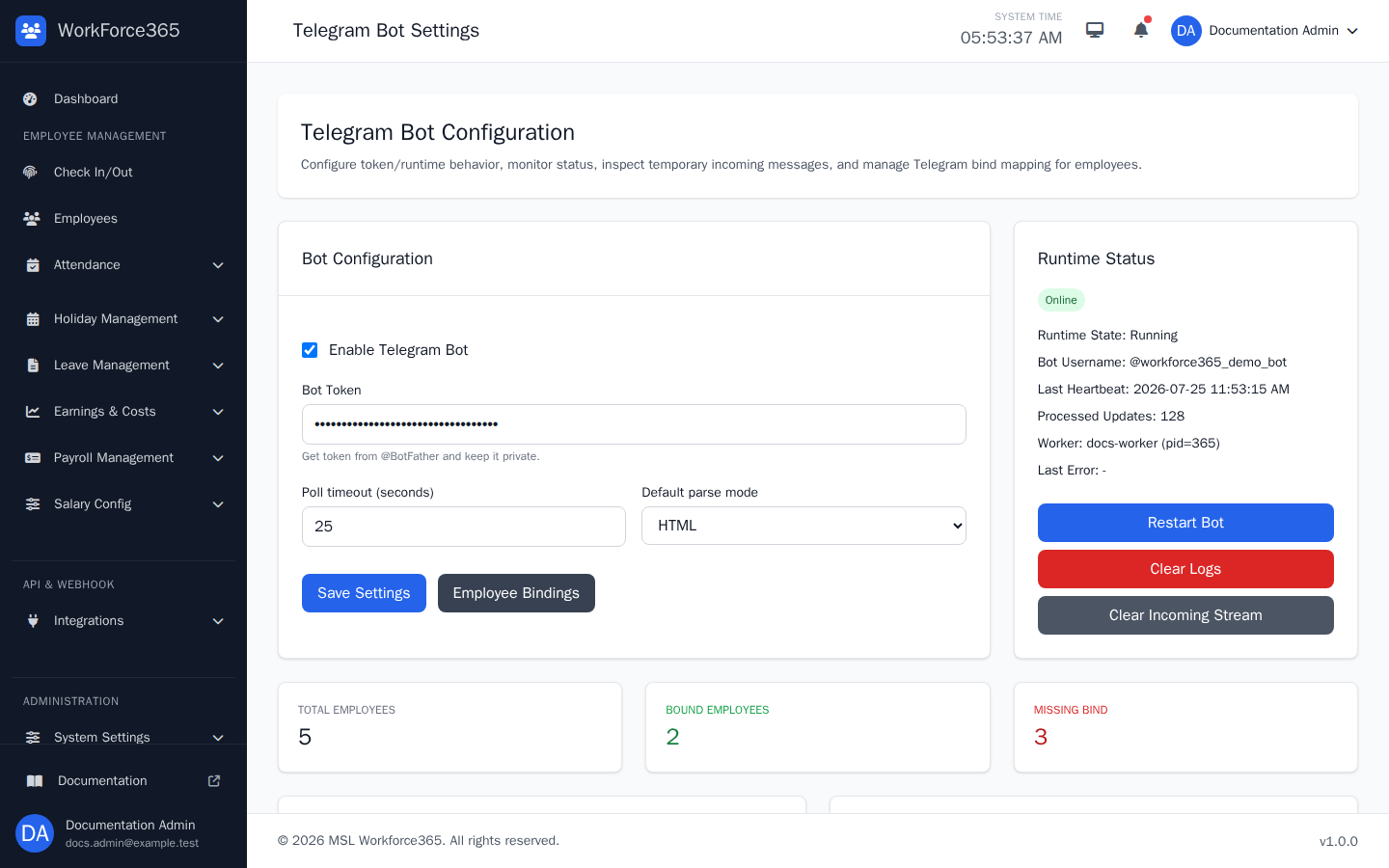
| Telegram Bot | Enable state, token, polling timeout, and parse mode | Controls bot communication, runtime restart requests, incoming events, and logs. |
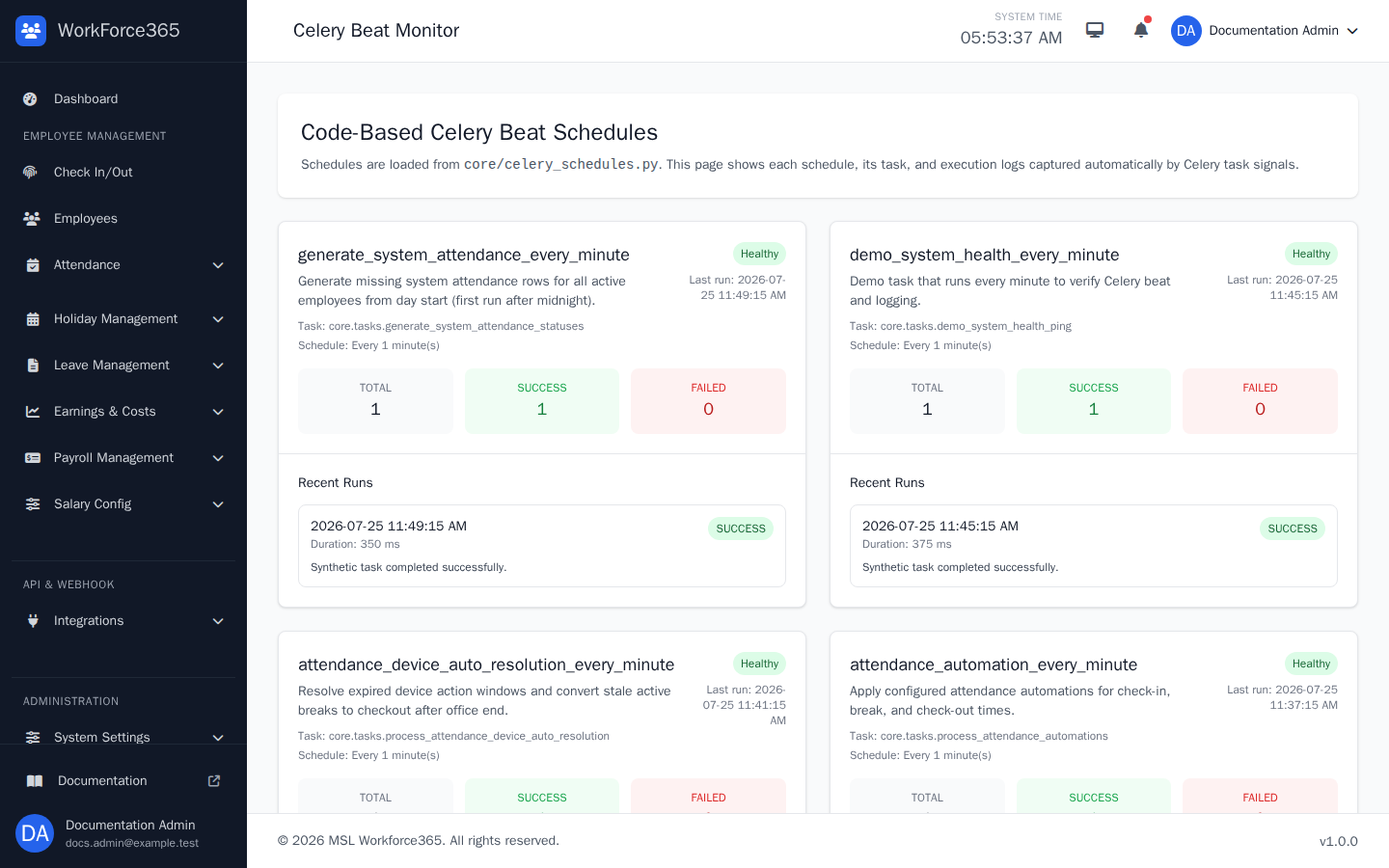
| Celery Monitor | Read-only code-based schedules and run history | Shows whether recurring attendance and maintenance tasks are executing successfully. |
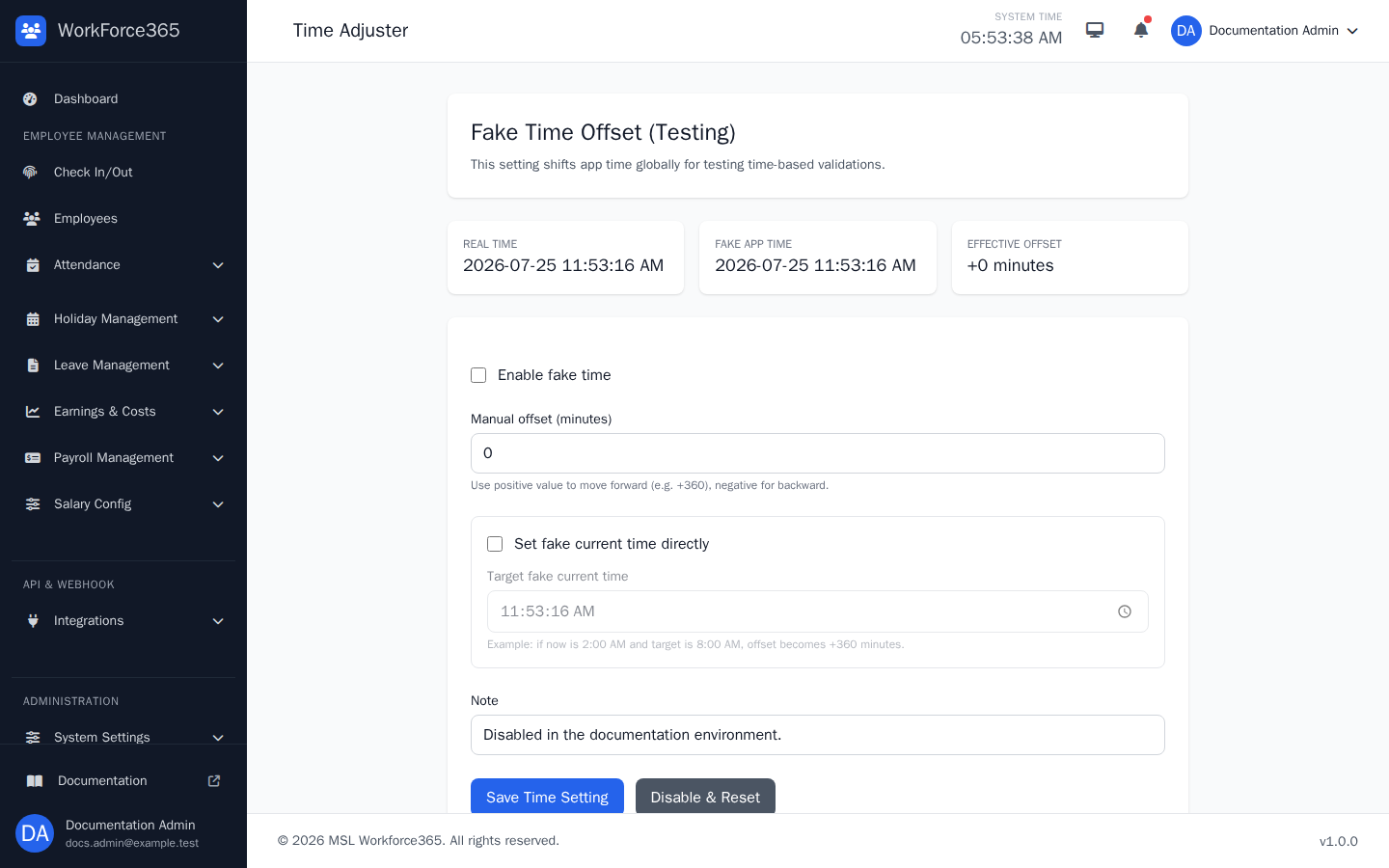
| Time Adjuster | Global fake-time enable state, offset or target time, and note | Changes application time for controlled testing without changing the server clock. |
System Settings Screens
These screenshots use synthetic values in an isolated documentation database and can be regenerated from the current application pages.
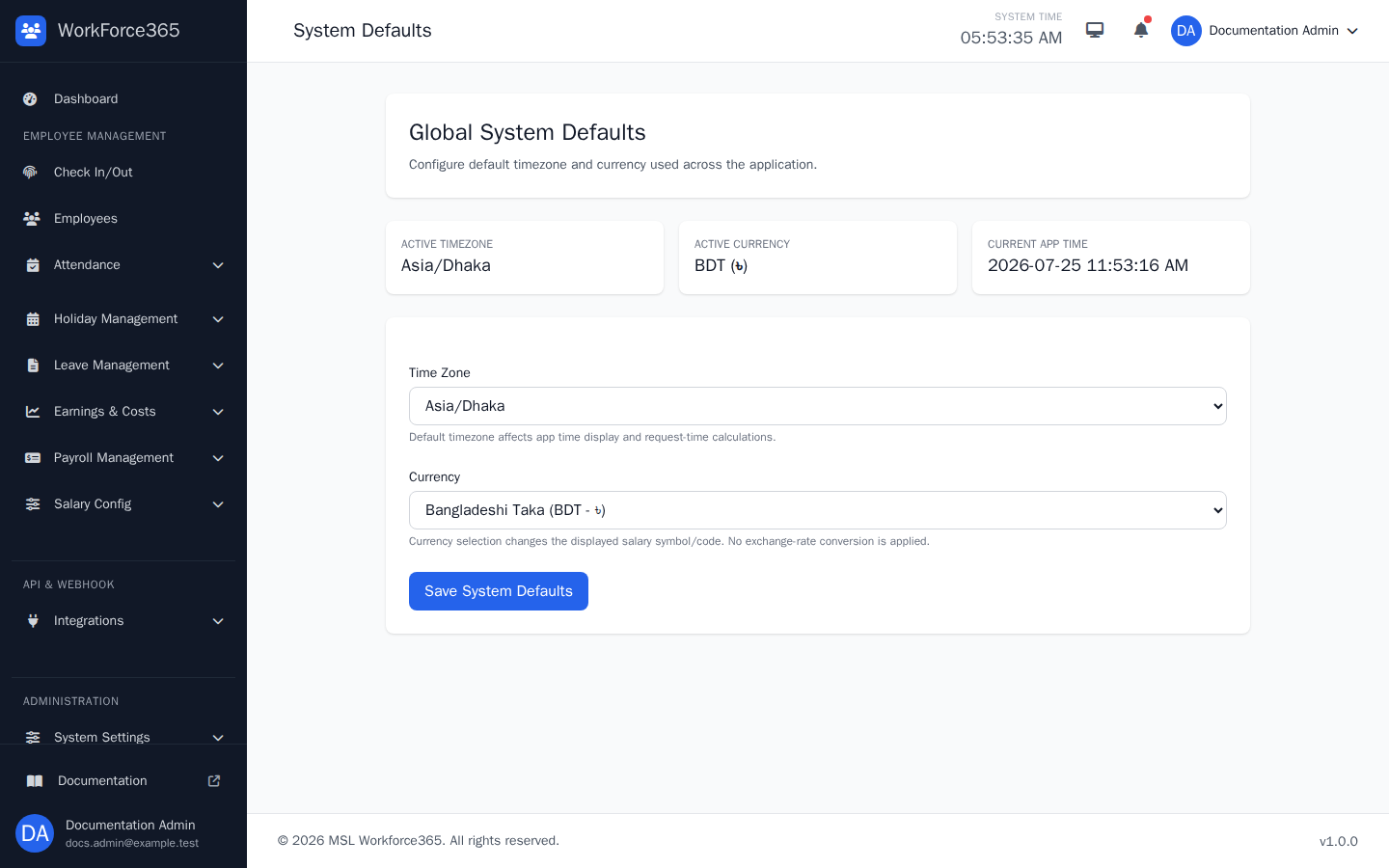
System Defaults
Selects the global timezone and displayed currency. The page also shows the current application time and the last administrator update.
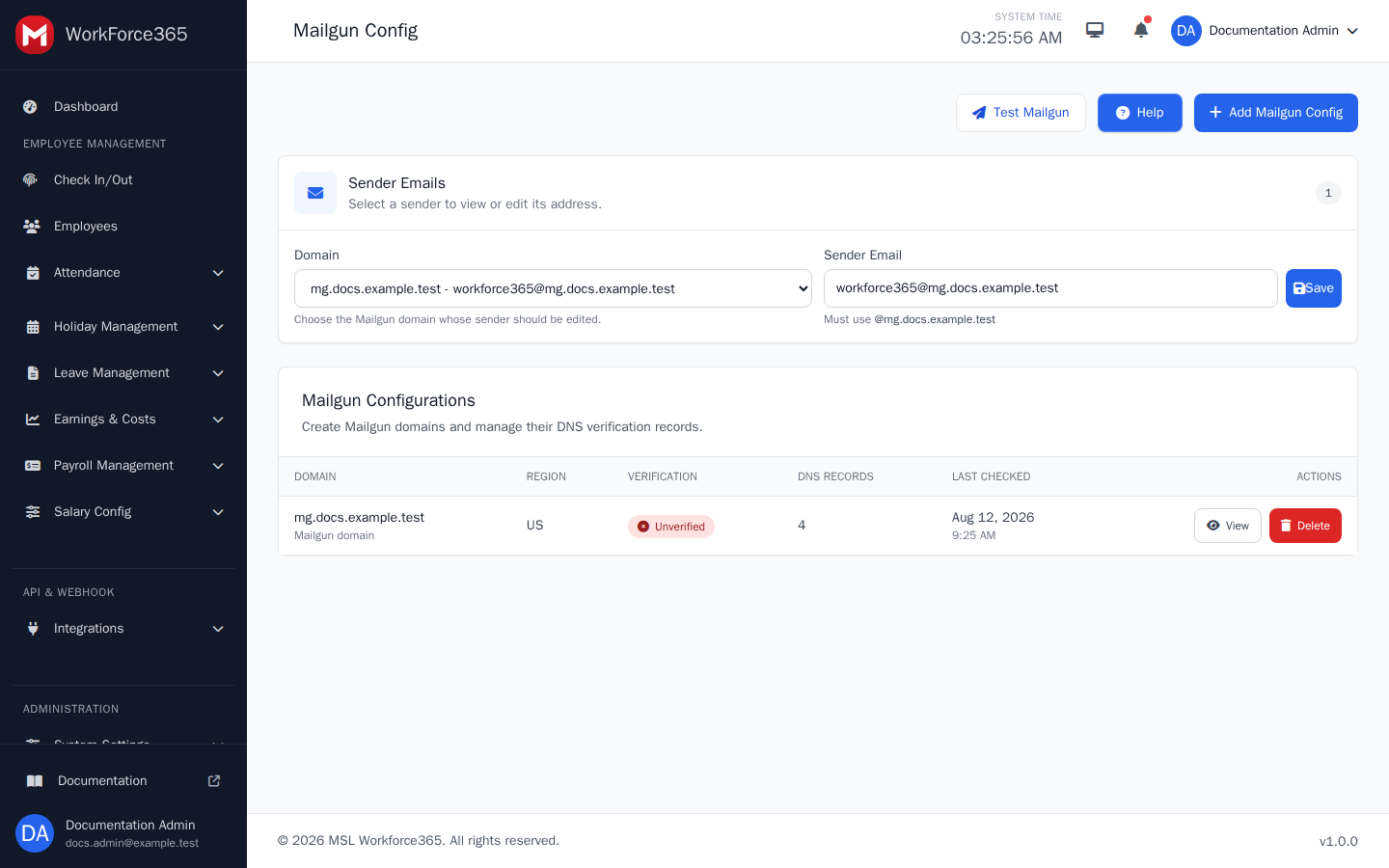
Mailgun Config
Creates Mailgun domains, stores their DNS records, and provides View, Verify DNS, Copy, and Delete actions without exposing the API key.
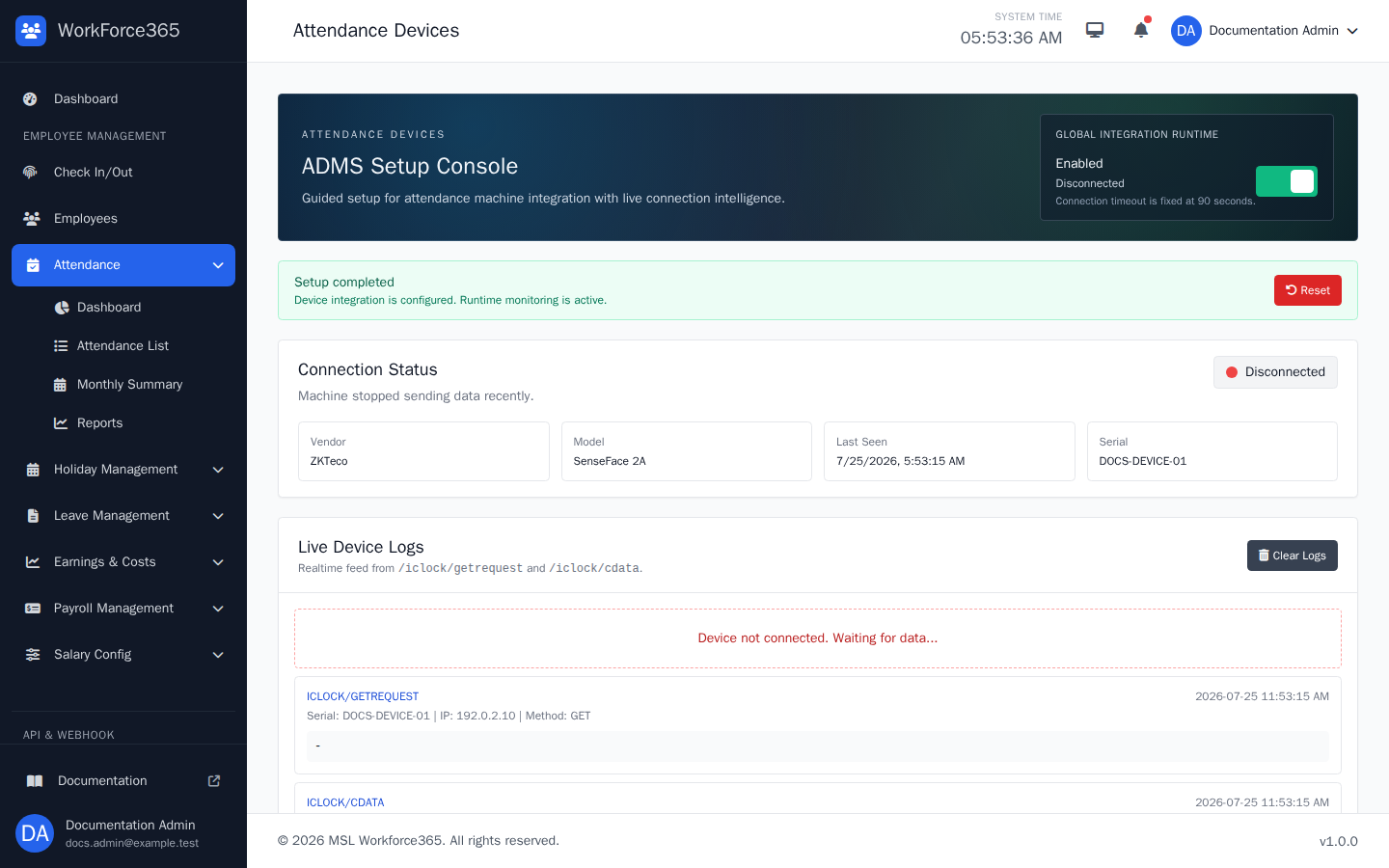
Attendance Devices
Enables the ADMS runtime, guides vendor and model setup, provides endpoint URLs, and reports live connection health and device logs.
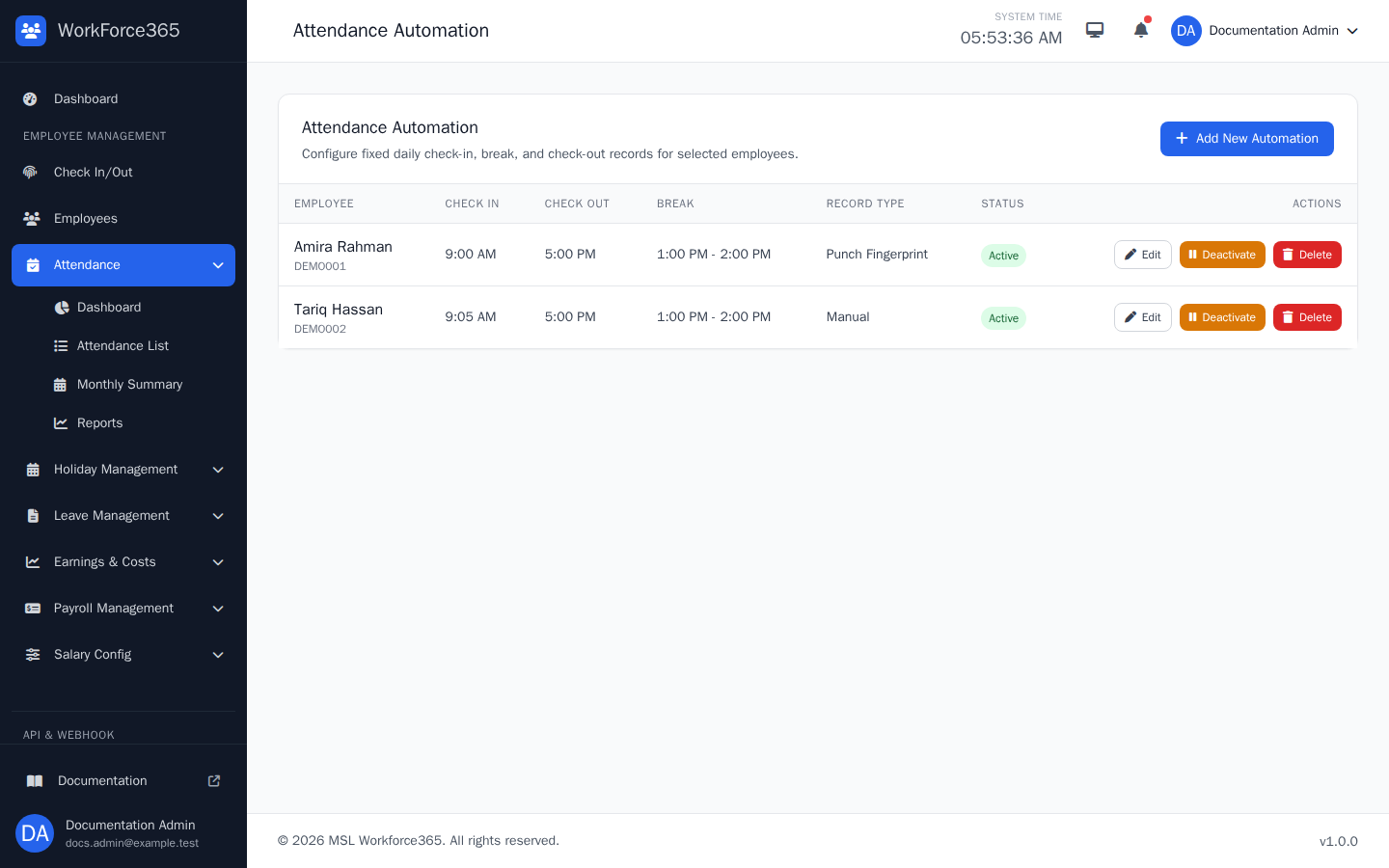
Attendance Automation
Lists employee-specific check-in, check-out, break, and record-source rules with add, edit, activate, deactivate, and delete actions.
Telegram Bindings
Approves or rejects pending mapping requests and lets administrators search bound or unbound employees and review recent decisions.
Telegram Bot
Configures bot credentials and polling, displays runtime health and employee binding totals, and provides restart and log-management actions.
Celery Monitor
Shows each code-based recurring schedule, its interval, latest result, success and failure totals, worker, duration, and recent run history.
Time Adjuster
Compares real and application time, then enables a global minute offset or target time for testing. Reset returns the application to real time.
Defaults and Email Delivery
Timezone and currency establish shared display behavior, while Mailgun configuration manages domain verification and the existing active SMTP sender delivers password resets and other email notifications.
Timezone
Use the organization’s operating timezone. Date boundaries, displayed timestamps, and period-based work can depend on this value.
Currency
Changes the monetary symbol and code shown across salary, payroll, earnings, and costs. It does not apply an exchange rate.
Mailgun Security
The Mailgun API key stays in the server environment and is never sent to the browser. Domain creation and DNS verification are restricted to administrators.
Sender Identity
From Name, From Email, and optional Reply-To identify application messages and where employee replies should go.
Attendance Devices and Automation
Device integration receives physical attendance-machine events; automation creates timed punches for selected employees. Both feed attendance records and should be configured deliberately.
Device Setup
Select a supported vendor and model, copy the ADMS root URL into the machine, confirm setup, and wait for a recent heartbeat.
Connection Monitoring
Status, serial number, last-seen timestamps, and logs help distinguish setup problems from an offline device.
Automation Rules
Each active rule belongs to one employee and defines check-in, check-out, break times, and whether generated records appear as manual or fingerprint.
Validation
Times must fit the employee’s office schedule and break policy. Only one active automation is allowed per employee.
Telegram Communication
The bot configuration controls the communication service; employee bindings determine which account receives or sends information for each employee.
Bot Credentials
Keep the BotFather token private. Changing the enabled state, token, or poll timeout automatically requests a runtime restart.
Runtime Health
Online, waiting, offline, and disabled states are calculated from configuration, worker state, and heartbeat freshness.
Binding Approval
Review the requester and employee before approval. A replacement request can move an existing Telegram account to another employee.
Logs and Events
Incoming messages and bot logs support troubleshooting. Clear actions permanently remove the displayed diagnostic records.
Scheduled Operations and Time Testing
Celery Monitor reports recurring task health, while Time Adjuster deliberately changes application time for testing.
Code-Based Schedules
Schedule definitions are maintained in project code. The monitor is read-only and shows recent executions, duration, status, and worker identity.
Attendance Tasks
Recurring tasks generate missing attendance, process device action timeouts, and apply attendance automation rules.
Fake-Time Scope
When enabled, the offset affects application time globally. It does not change the operating system clock.
Reset After Testing
Use Reset to disable fake time and return the offset to zero. Verify the header no longer shows the Fake Time indicator.
Screenshot Refresh and Safety
The screenshot workflow recreates all settings pages with non-production values in the isolated documentation database.